Beyond Downloads: Turn Every Course Into a Learning Workspace
Downloading a course is only the beginning. See how Udemie turns your local library into a focused place to watch, search, review, and understand every lecture.

By Emmanuel Zenderock
Creator of Udemie
- Published
- Reading time
- 3 min read
Downloading a course solves one important problem: you can learn when the internet is slow, unreliable, or unavailable. But it doesn't solve the next problem: turning an hour-long lecture into knowledge you can return to later.
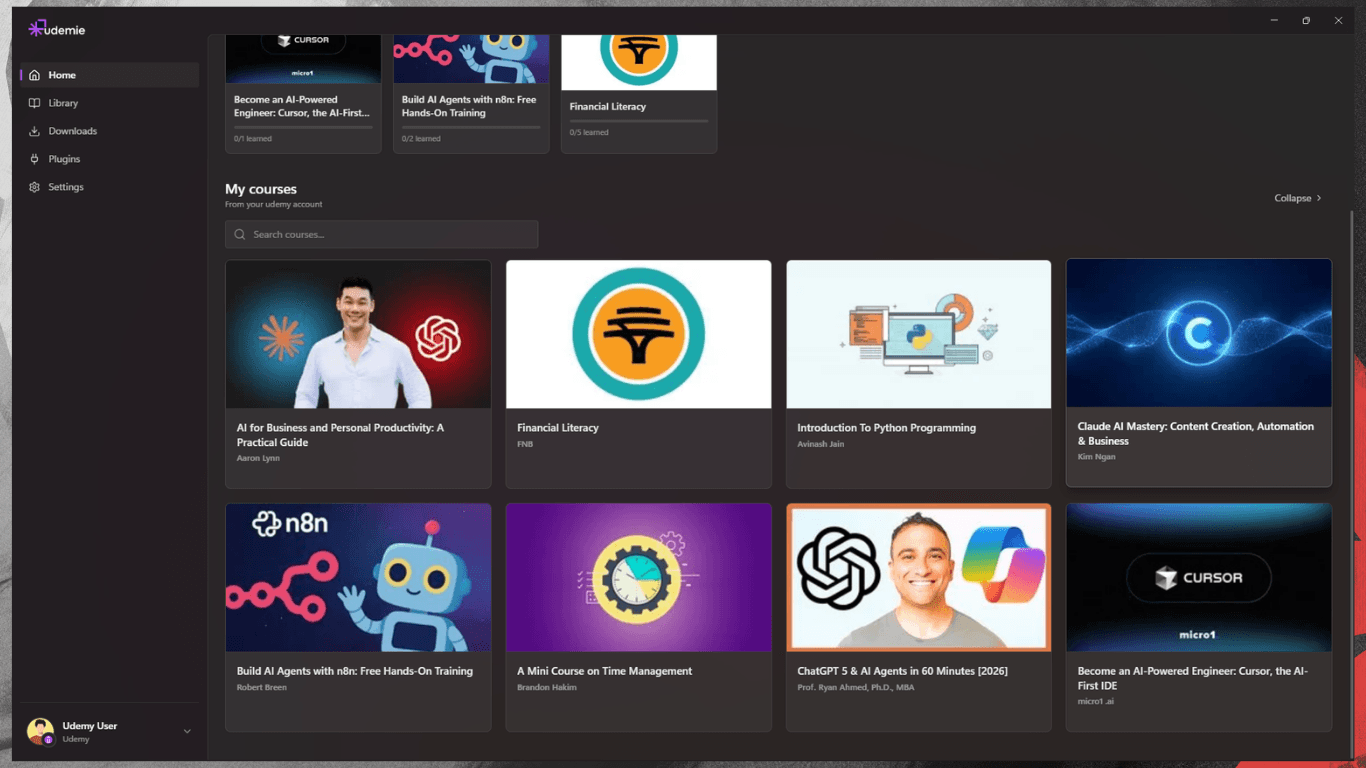
That's why Udemie is more than a downloader. It gives the courses you already have access to a dedicated learning workspace: a calm player, your course navigation, and the tools you need to review a lesson without scattering your attention across tabs and apps.
A player built for learning, not just watching
The video stays at the center of the experience. Around it, the tools that help you understand a lecture are available when you need them and out of the way when you don't:
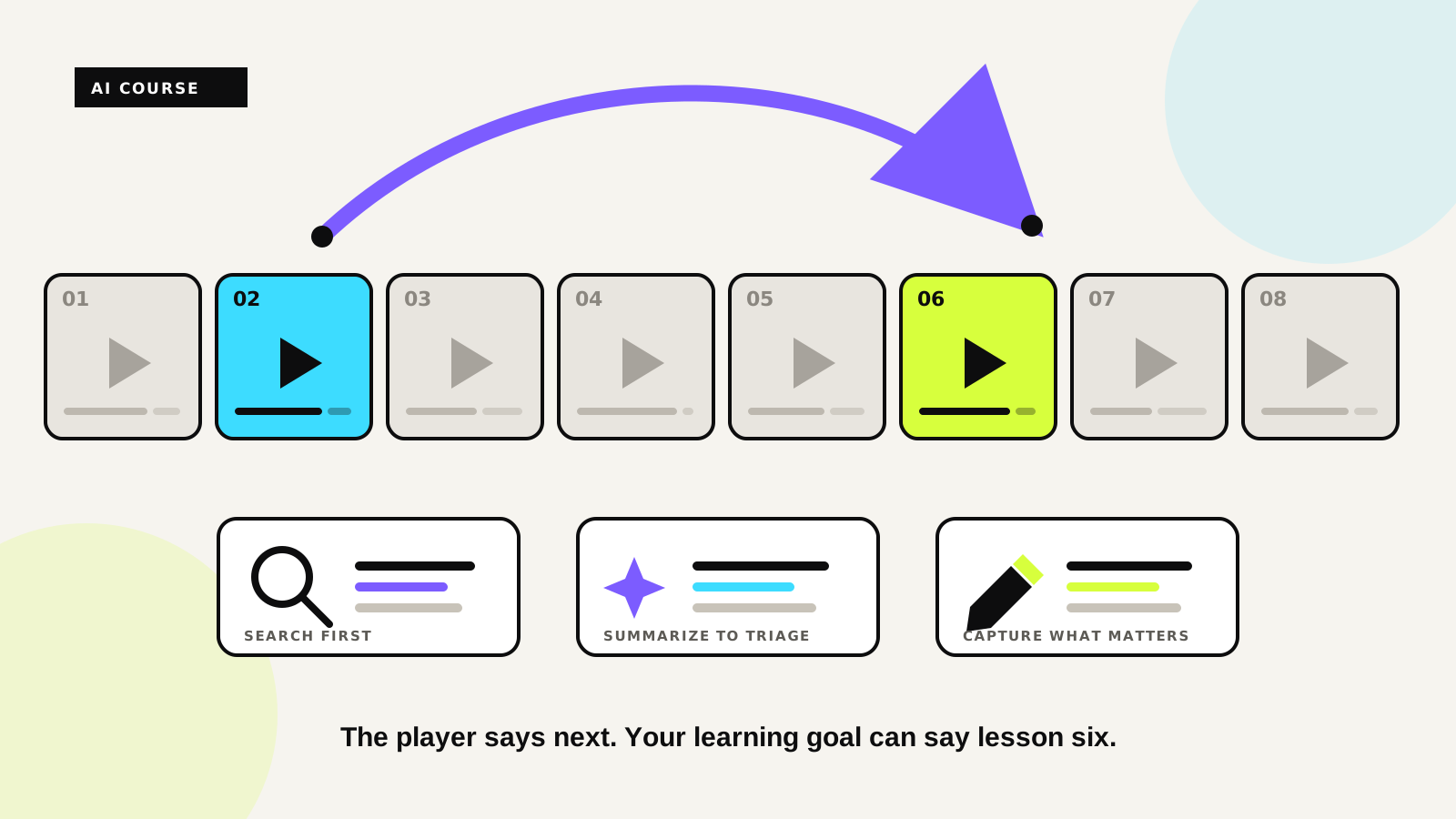
- A searchable transcript. Search the subtitles for a concept, see the matching passage, and jump straight to that moment in the video.
- Timestamped notes. Capture a thought at the current moment, then return to the exact part of the lesson later instead of guessing where you wrote it down.
- AI lecture summaries. Open a lecture and get a concise recap of its key ideas. It is useful before you watch, when you review, or when you need to decide what to revisit.
- Native-language subtitles. Translate available subtitle tracks into your app language, then switch tracks directly from the player.
- Resources in context. Keep the lecture's files and subtitles beside the video rather than searching through a download folder.
The result is simple: less scrubbing, less rewatching, and fewer context switches when you're trying to learn.
Ask questions without leaving the lecture
Sometimes the right next step isn't to rewatch. It is to ask a question. Udemie's course chat lives next to the player, so you can ask about either this lecture or the whole course without navigating away from what you are watching.
When the answer refers to course material, its citations take you back to the relevant lecture and timestamp. Each lecture also keeps its own in-session conversation, so a question about lesson two does not get mixed into a discussion about lesson twelve.
Made for focused review
Small playback details make a difference during a real study session. Udemie's player includes keyboard shortcuts, subtitle controls, adjustable speed, Picture-in-Picture, AB loop, and a hold-to-watch-at-2× control for quickly scanning familiar sections. Preferences such as speed, volume, and autoplay stay with you.
There is also an optional Ambient mode: it softly extends the colors of the current video around the player. It can make a late-night study session feel less like staring at a rectangle, and it is always one toggle away from being off.
Offline first. AI when you're connected.
The core learning experience works locally: downloaded video, course navigation, notes, and cached results remain available offline. The AI features are deliberately honest about their requirements:
- Summaries and subtitle translation need an available subtitle track and an internet connection.
- Course chat needs the course to be indexed and an internet connection.
- A lecture with no subtitles can still be watched and annotated, but it cannot provide a transcript-based summary or transcript search.
That separation matters. A bad connection should not take away your ability to study; it should only pause the features that genuinely depend on a service.
The difference is what happens after download
Udemie is not trying to claim a different video quality from the learning platform you use. The advantage is what surrounds the video once it is in your library:
Watch offline. Search every transcript. Review the important parts. Take notes at the right moment. Ask a question without leaving the lesson.
Your courses stay tied to the accounts and access you already hold. Udemie simply makes the time you spend with them more intentional.
Ready to turn your course library into a learning workspace? Try Udemie free, then open a downloaded lecture and make the player work for you.
- offline learning
- course player
- AI learning
- study tips
- Udemy

About the author
Emmanuel Zenderock
Builds Udemie, the desktop app that keeps Udemy, Coursera and LinkedIn Learning courses available offline, and writes about how it works.
Also available as Markdown