From Your Browser to Udemie: Set Up Udemie Capture
Connect Udemie Capture to the desktop app, send supported course links, then choose what to download on your computer.

By Emmanuel Zenderock
Creator of Udemie
- Published
- Updated
- Reading time
- 3 min read
Found a course worth keeping? Udemie Capture sends its link from Chrome to Udemie on your computer. The extension does not download course media. You choose what to download inside the desktop app, subject to your provider access and download restrictions.
This guide describes Capture 1.2.1 with the compatible Udemie 4.0.0 desktop release. An older desktop app may support only manual pairing and single-course sending.
Before you start
You need Chrome 120 or later, the Udemie desktop app installed and running on the same Windows or Linux computer, and Udemie Capture from the Chrome Web Store. The extension does not install on a phone, and Udemie desktop is not available for macOS.
Connect once
- Open Udemie on your computer.
- Open Capture and choose Connect Udemie.
- Let Chrome open Udemie, then choose Connect browser in the app’s native approval dialog.
- Return to Chrome. The connection stays on this device.
If Chrome cannot open the app, choose Connect manually. In Udemie, open Settings → Automation → Browser Bridge, enable the bridge and copy the connection code. Paste it into Capture’s Connection code field and choose Connect with this code. Keep the code private.
Send a course link
- Open a supported course page you can legitimately access.
- Open the extension and recognize the course title and thumbnail when available.
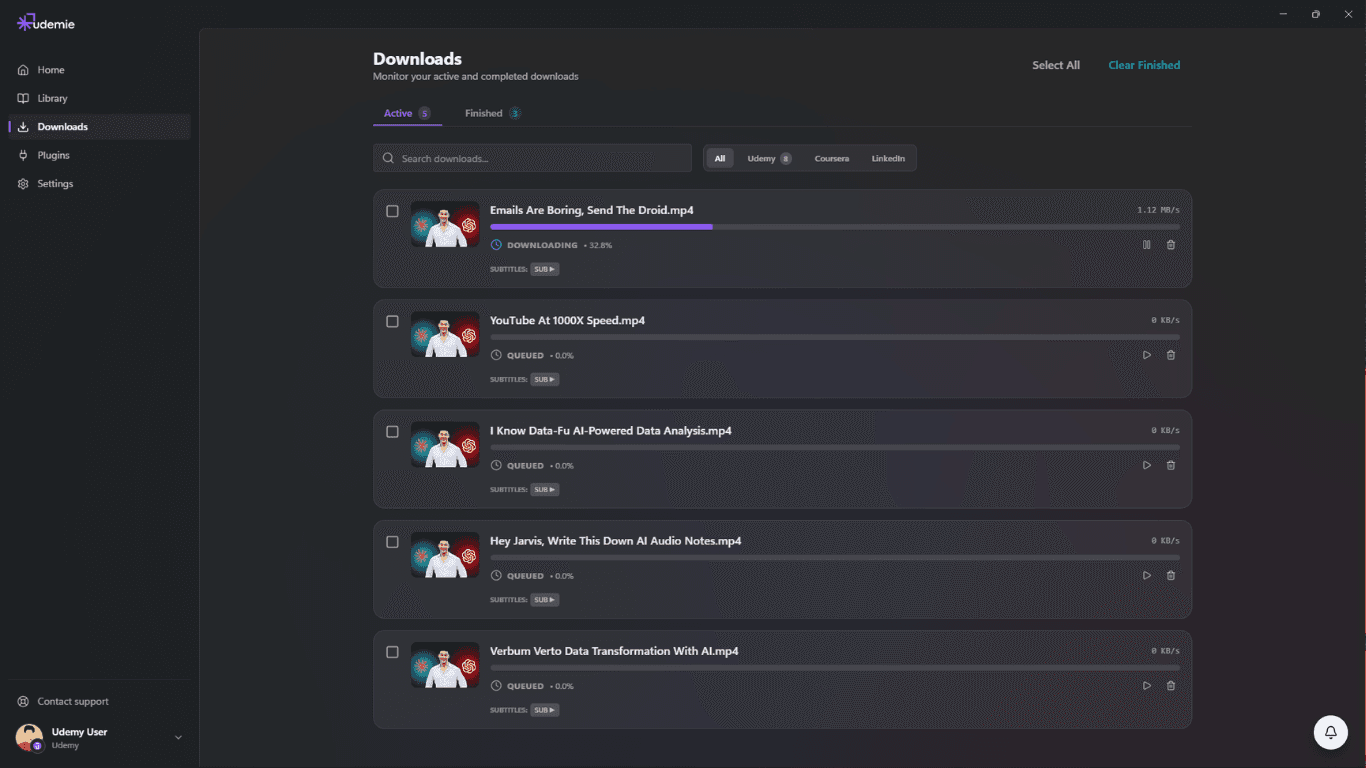
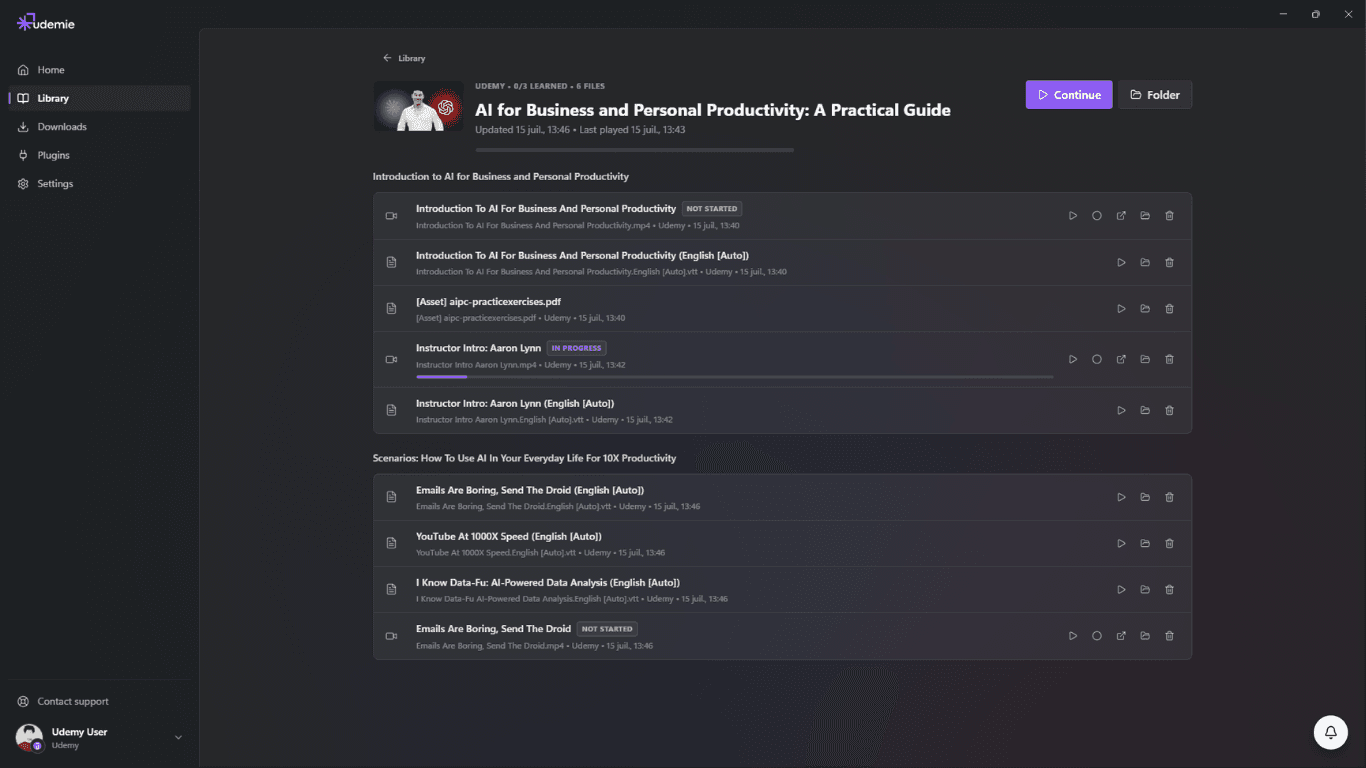
- Choose Open in Udemie. In the desktop app, choose what to download.
Supported course URL patterns are Udemy /course/<name>/, Coursera /learn/<name> and LinkedIn Learning /learning/<name>. A search page or specialization is not itself a supported course. Provider login, enrollment, DRM and media restrictions still apply; saving a link does not grant access.
You can also right-click a supported page or link and choose Send to Udemie, or use Ctrl + Shift + U in Chrome. Chrome may let you reassign that shortcut.
Choose several links
Choose Choose courses on this page to select supported links currently rendered on the page, up to 50 per send. This does not enumerate an entire paginated or remote catalogue. Saved source links can be revisited in From your browser. A saved link is not a completed download.
Optional: connect your Udemy account
On a signed-in Udemy tab, choose Connect Udemy or Use this Udemy account. Only this explicit action accesses the relevant Udemy session token and shares it with the local desktop app. Pairing alone does not sign you in, and Capture does not share Coursera or LinkedIn sessions this way. An expired session or a different Udemy portal may require another explicit connection.
What is sent?
When you send a course, Capture reads its URL and available page metadata, such as the title, instructor and thumbnail. The extension-to-desktop handoff uses a local 127.0.0.1 bridge on your computer, not an Udemie cloud service. The optional Udemy account action also accesses the relevant session token. Subsequent provider sign-in and course downloads use the desktop app’s normal provider connections.
If you cannot connect
- Not connected / app offline: open Udemie, then retry. If Chrome cannot open the app, use the manual connection method above.
- Rejected or regenerated code: reconnect with the current Browser Bridge code.
- Expired approval: a native connection request expires after two minutes. Start another request.
- Paused send: reopen Capture and choose its retry action. A retained selection is not proof that the desktop accepted it.
- Course not recognized: open the actual supported course URL. Provider website changes or access restrictions may require further troubleshooting.
See the extension and setup guide, or get Udemie for your computer.
- Chrome extension
- Udemy
- Coursera
- LinkedIn Learning
- how-to

About the author
Emmanuel Zenderock
Builds Udemie, the desktop app that keeps Udemy, Coursera and LinkedIn Learning courses available offline, and writes about how it works.
Also available as Markdown