Downloading Coursera Courses for Offline Viewing: What to Expect
Thinking about saving Coursera lectures to watch offline? Here's what actually downloads, how subtitles and resources are handled, and what to keep in mind.

By Emmanuel Zenderock
Creator of Udemie
- Published
- Reading time
- 1 min read
Coursera is built for streaming, which is great until you're on a plane, on a metered connection, or somewhere the Wi‑Fi can't keep up. If you're enrolled in a course, you can bring it offline instead. Here's what that looks like in practice and what to expect before you start.
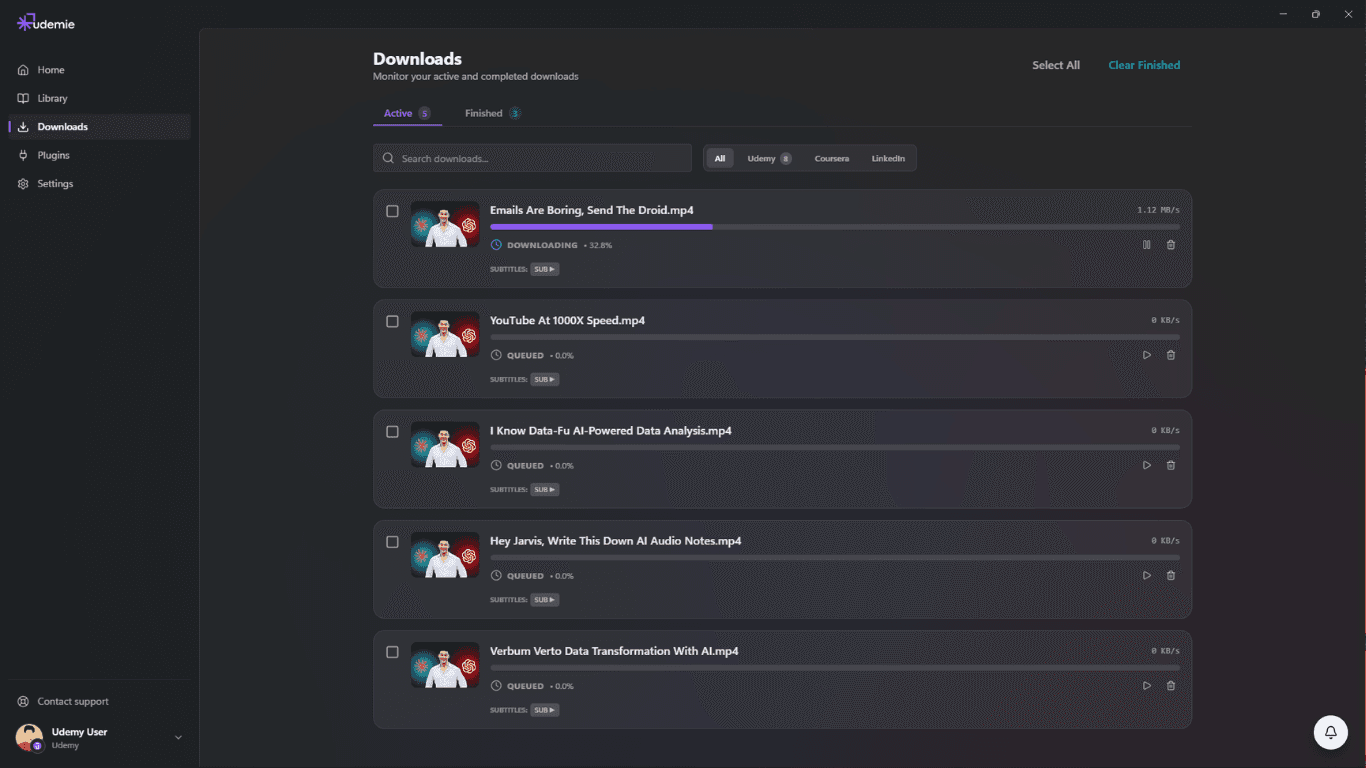
The quick version: connect your Coursera account in Udemie, pick a course, and download the videos, subtitles, and resources into a local library. Try it free.
What actually downloads
A good offline download mirrors the course, not just the video:
- Video lessons, stored locally so they play without streaming.
- Subtitle tracks, useful for language practice or quiet study (see downloading course subtitles).
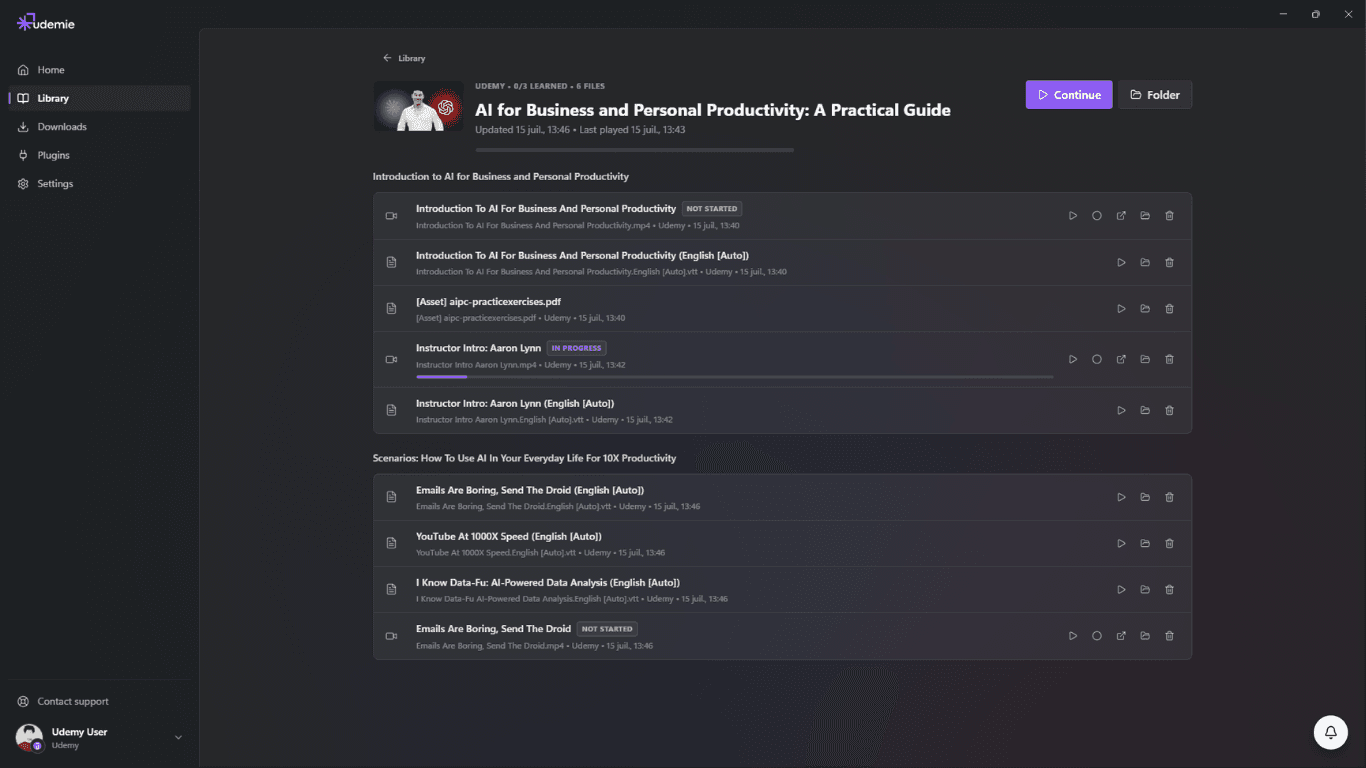
- Available resources, like PDFs and attachments, when the course provides them.
What you get is a structured copy, with sections and lectures intact, rather than a pile of files.
Whole specializations, not just single courses
Coursera specializations bundle several courses. Instead of downloading them one lecture at a time, you can queue the set and let it run in the background. The full walkthrough is here: download a Coursera specialization.
Things to keep in mind
- Stay enrolled and in good standing. A downloaded course is a local copy for offline access while your Coursera account is active. It's for convenience, not for bypassing enrollment.
- Subtitles are worth enabling. They power AI lecture summaries and search, so turn them on at download time.
- Mind your disk space. Video-heavy courses add up; download what you're actively studying.
Watching offline
Once downloaded, courses open in a built-in player with progress tracking and notes, so studying offline feels the same as studying online, minus the buffering.
Beyond Coursera
The same local library holds Udemy and LinkedIn Learning courses too, so you're not juggling separate tools. More on the Coursera platform page.
Ready to try it? Start with Udemie for free, or read how offline learning works across all three platforms.
- Coursera
- offline learning
- subtitles

About the author
Emmanuel Zenderock
Builds Udemie, the desktop app that keeps Udemy, Coursera and LinkedIn Learning courses available offline, and writes about how it works.
Also available as Markdown